
Automating Point Collection | One-Click Daily Check-In for DataDID via OpenClaw
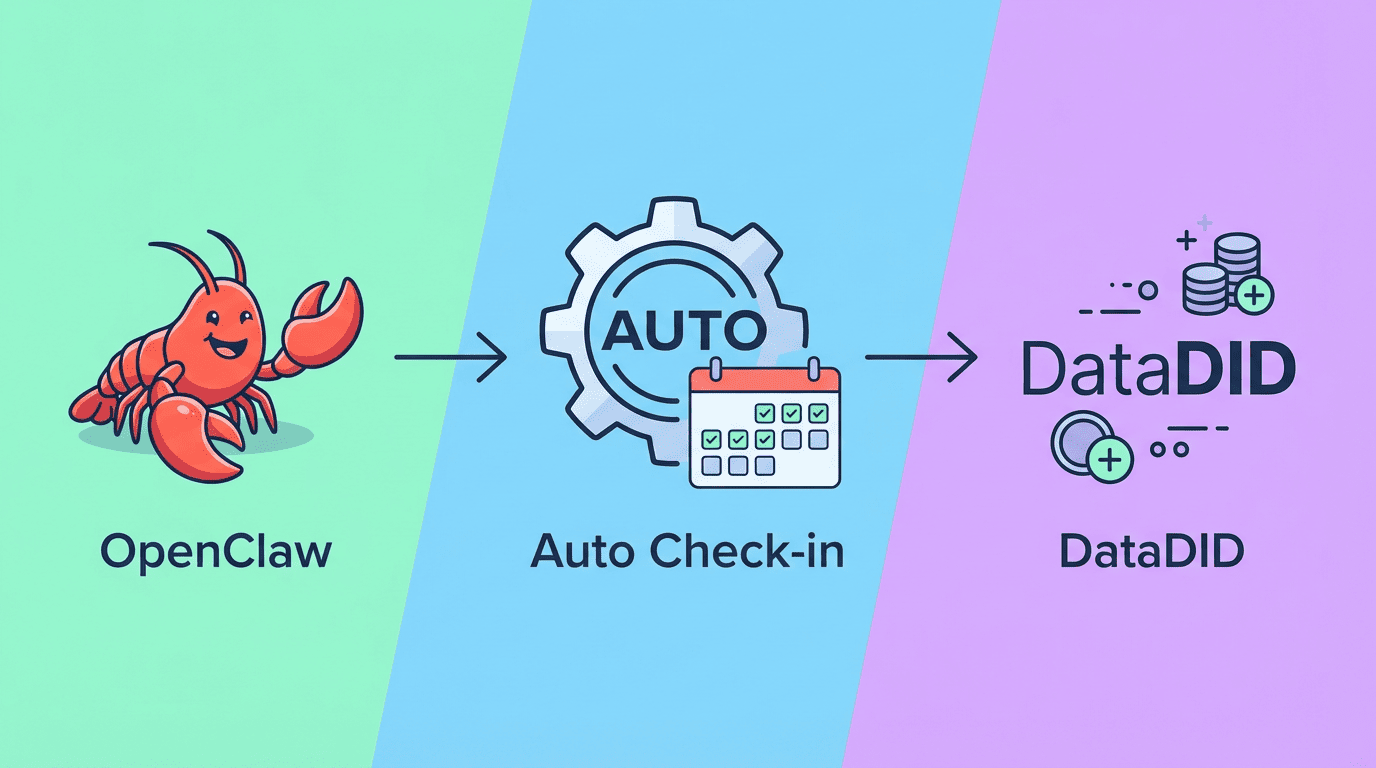
Great news: DataDID now supports automated daily check-ins through OpenClaw.
Once you install the datadid-checkin Skill, your DataDID daily check-in, AliveCheck daily check-in, and point collection can all be handled automatically by OpenClaw. Set it up once, and you’re done — no more manual check-ins every day.
What Does This Skill Do?
datadid-checkin is an OpenClaw Skill built specifically for DataDID users. Once installed and configured, it automatically handles the following three tasks:
DataDID Daily Check-In: Automatically completes the DataDID platform check-in every day. Points are credited in real time — no need to manually open the page.
AliveCheck Daily Check-In: AliveCheck is DataDID’s built-in digital life guardian module that relies on daily check-ins to stay active. With this Skill, AliveCheck check-ins are also automated — keeping your guardian status uninterrupted.
Automatic Point Accumulation: Points from both check-in tasks are automatically added to your account. Early participants can maintain their point advantage without worrying about missed check-ins causing a drop in rankings.
Installation & Setup
Step 1: Install the Skill
Search for datadid-checkin in the ClawHub marketplace and install it, or download it directly from the link below:
👉 https://skillhub.memolabs.net/q-hp-true/datadid-checkin
You can also type the following command in the OpenClaw chat box, and OpenClaw will handle the installation automatically:
Install this Skill for me: datadid-checkin — ClawHub
Step 2: Complete Login Verification
After installation, you’ll need to complete a one-time email login verification for your DataDID account. Once done, your credentials are saved locally, and you won’t need to verify again.
Check Your Current Login Status
Run the following command in the OpenClaw terminal to check if you’re already logged in:
python /home/admin/clawd/skills/datadid-checkin/scripts/token_helper.py check
Review the output:
• If it shows Logged in or your email address: you’re already logged in. Skip ahead to Step 3.
• If it shows Not logged in or returns an error: you’re not logged in yet. Continue with the steps below.
💡 If this is your first time setting up this Skill, the check will typically return “not logged in.” Feel free to skip the check and follow the steps below in order.
Send the Verification Code
Enter your DataDID registered email address in the terminal. The system will send a 6-digit verification code to that email.
Enter the Verification Code to Log In
Open your inbox, find the verification email, enter the 6-digit code in the terminal, and press Enter to complete login.
Step 3: Run Your Check-In
Once login is complete, type any of the following commands in the OpenClaw chat box to trigger a check-in:
Check in on DataDID
or
Check in on AliveCheck
OpenClaw will automatically invoke the datadid-checkin Skill, complete the check-in for the corresponding platform, and return the result.
Once you’ve completed the setup, all you need to do each day is give OpenClaw the check-in command — it handles the rest. The whole process goes from “manually opening the page every day” to “a single command,” dramatically cutting down on your daily time commitment.
Don’t Have OpenClaw Yet?
The datadid-checkin Skill requires the OpenClaw environment to run. If you haven’t installed OpenClaw yet, you can still check in manually on the DataDID platform — your points will accumulate just the same.
If you’d like to take advantage of the automated check-in feature, check out MEMO’s official OpenClaw installation guide for a step-by-step walkthrough of the local deployment process. Once installed, follow the steps in this article to configure the datadid-checkin Skill and start automating your check-ins.
👉 OpenClaw Setup Guide: OpenClaw Setup + MEMO MEFS Agent Service: Complete Usage Guide